
Guía para tu arte
Good files make great transfers. Use this guide before you upload to a gang sheet or order DTF transfers by size.
1File types
- PNG with a transparent background gives the best results.
- The gang sheet builder also accepts WEBP, JPG, JPEG, SVG, PSD, AI, EPS and PDF.
- Send one design per file when you can.
2Resolution: 300 DPI
- Save your file at 300 DPI at the size you want to print.
- Quick math: inches × 300 = pixels you need.
| Print width | Minimum pixels |
|---|---|
| 3.5 in (small logo) | 1,050 px |
| 4 in (left chest) | 1,200 px |
| 10 in | 3,000 px |
| 11 in (full front) | 3,300 px |
| 22.5 in (full sheet width) | 6,750 px |
Enlarging a small image does not add detail. The builder marks low-resolution designs so you can fix them before you order.
3Background
- Everything that is not transparent will print, including white boxes.
- Background removal is free. Tell us in the builder or in your order notes and our design team removes it by hand.
- Redrawing or improving low-quality images is a paid service. We quote it before doing any work.
4Size and layout
- Our film is 22.5 in wide. DTF by size goes up to 22.5 × 72 in. Gang sheets come in 2 to 50 ft.
- Set your design to its real print size.
- On a gang sheet, leave about 0.25 in between designs so they are easy to cut.
- Do not mirror your design. We print it the right way.
5Color
- We print with Vibrant 9-Color (CMYK + RGBO + White) on ICC color-calibrated printers.
- Need an exact color? Send the HEX code with your order number to orders@artiszen.com.
- A white base is added under your colors automatically, so designs pop on dark garments.
6Fine details
- Keep text at 8 pt or larger and lines at least 0.02 in (0.5 mm) thick.
- Avoid soft shadows, glows and fades into transparency. Semi-transparent pixels can print as specks.
- Outline your text or embed your fonts in AI, EPS, SVG and PDF files.
Removing the background yourself
Our design team removes backgrounds for free. If you prefer to do it yourself, these tools work well:
Quick and online
- Canva (Background Remover, Pro plan)
- Photoroom
- remove.bg
- Adobe Express
Professional
- Adobe Photoshop (Remove Background, Select Subject)
- Adobe Illustrator (vector art)
- Affinity Photo / Designer
Free
- GIMP (desktop)
- Photopea (in your browser)
Automatic tools are fast but not perfect. Always check the result.
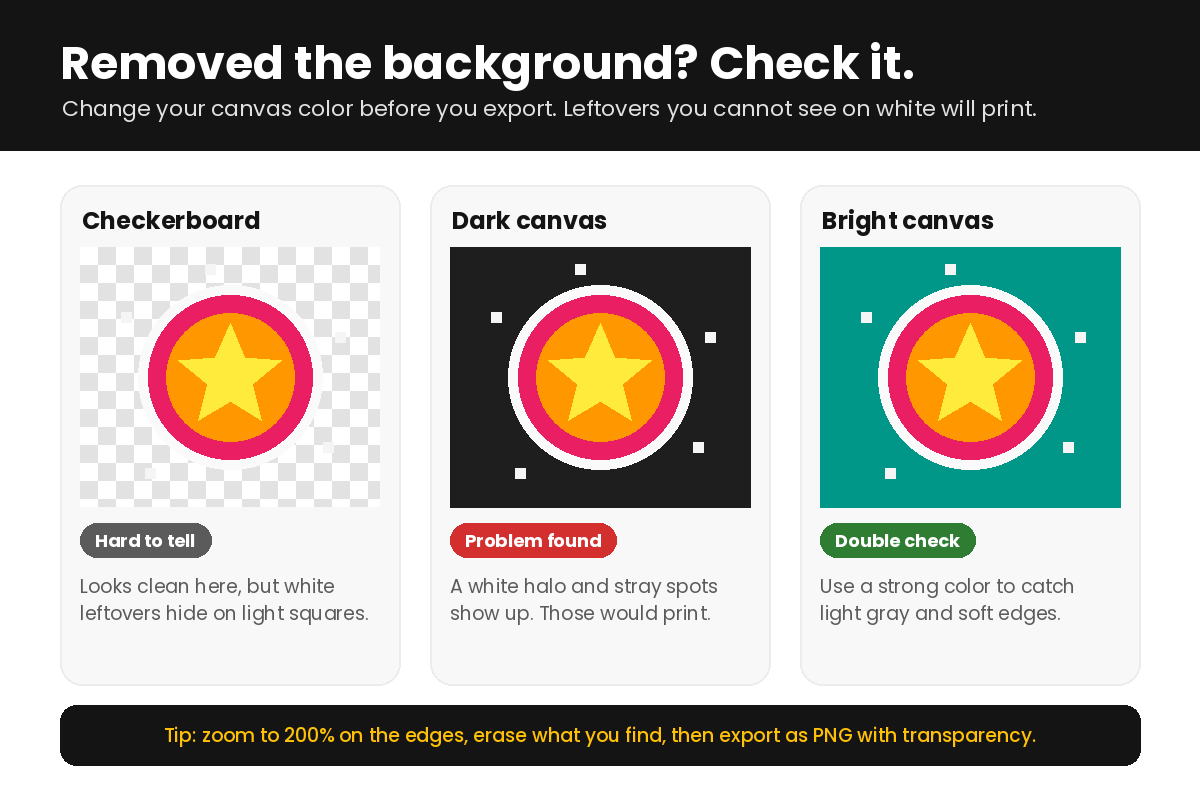
Check before you export
- Change the canvas or background color to black, then to a bright color like teal or red.
- Zoom to 200% and look at the edges, inside letters and between shapes.
- Erase white halos, gray shadows and stray pixels. Anything you see will print.
- Export as PNG with transparency. JPG does not keep a transparent background.
Before you order
- Transparent background, or background removal requested
- 300 DPI at print size
- Real print size set and designs spaced on the sheet
- You own the design or have permission to print it
After printing
Press your transfers with the right temperature, time and pressure for your material.
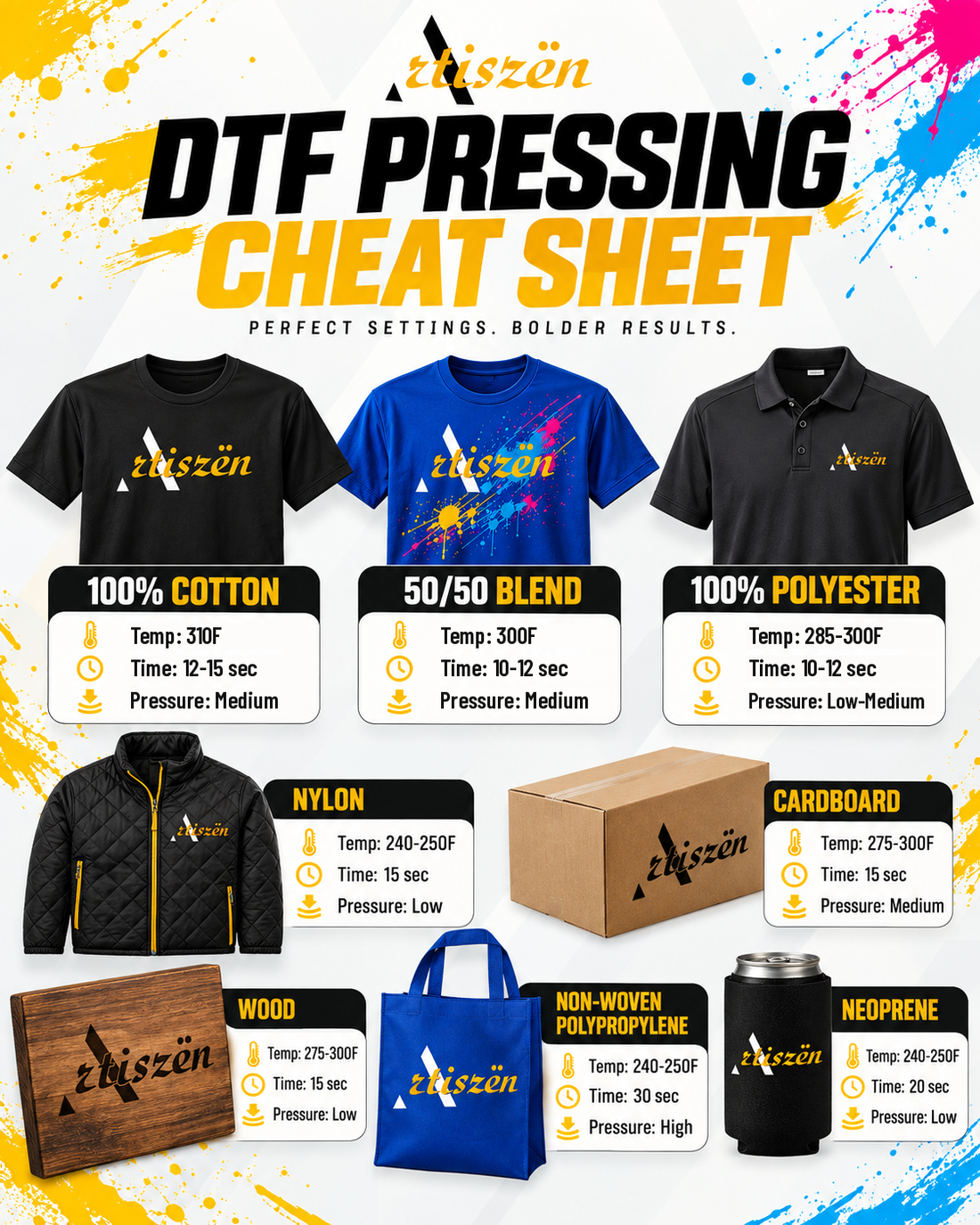
Full steps in How to Press DTF Transfers. New to our builder? See How to Build a Gang Sheet.
Questions?
Use our contact form or WhatsApp us at (656) 227-2001.
Un buen archivo hace un gran transfer. Revisa esta guía antes de subir tu diseño a un gang sheet o de pedir transfers DTF por tamaño.
1Tipos de archivo
- PNG con fondo transparente da el mejor resultado.
- El editor de gang sheets también acepta WEBP, JPG, JPEG, SVG, PSD, AI, EPS y PDF.
- Cuando puedas, manda un diseño por archivo.
2Resolución: 300 DPI
- Guarda tu archivo a 300 DPI en el tamaño en que lo quieres imprimir.
- Cuenta rápida: pulgadas × 300 = píxeles que necesitas.
| Ancho impreso | Píxeles mínimos |
|---|---|
| 3.5 in (logo pequeño) | 1,050 px |
| 4 in (pecho izquierdo) | 1,200 px |
| 10 in | 3,000 px |
| 11 in (frente completo) | 3,300 px |
| 22.5 in (ancho completo) | 6,750 px |
Agrandar una imagen pequeña no le suma detalle. El editor marca los diseños de baja resolución para que los arregles antes de ordenar.
3Fondo
- Todo lo que no sea transparente se imprime, incluidos los recuadros blancos.
- Quitar el fondo no tiene costo. Indícalo en el editor o en las notas de tu orden y nuestro equipo de diseño lo quita a mano.
- Redibujar o mejorar imágenes de baja calidad es un servicio pagado. Te damos el precio antes de hacer cualquier trabajo.
4Tamaño y acomodo
- Nuestro film mide 22.5 in de ancho. DTF por tamaño llega hasta 22.5 × 72 in. Los gang sheets van de 2 a 50 ft.
- Pon tu diseño en su tamaño real de impresión.
- En un gang sheet, deja unas 0.25 in entre diseños para cortarlos fácil.
- No pongas tu diseño en espejo. Lo imprimimos al derecho.
5Color
- Imprimimos con Vibrant 9-Color (CMYK + RGBO + blanco) en impresoras calibradas con perfiles ICC.
- ¿Necesitas un color exacto? Manda el código HEX con tu número de orden a orders@artiszen.com.
- Debajo de tus colores se agrega una base blanca automáticamente, para que resalten en prendas oscuras.
6Detalles finos
- Usa texto de 8 pt o más y líneas de al menos 0.02 in (0.5 mm) de grosor.
- Evita sombras suaves, resplandores y degradados que se vuelven transparentes. Los píxeles semitransparentes pueden salir como puntitos.
- En archivos AI, EPS, SVG y PDF, convierte el texto a contornos o incrusta las fuentes.
Quitar el fondo tú mismo
Nuestro equipo de diseño quita el fondo sin costo. Si prefieres hacerlo tú, estas herramientas funcionan bien:
Rápidas y en línea
- Canva (Background Remover, plan Pro)
- Photoroom
- remove.bg
- Adobe Express
Profesionales
- Adobe Photoshop (Quitar fondo, Seleccionar sujeto)
- Adobe Illustrator (arte vectorial)
- Affinity Photo / Designer
Gratis
- GIMP (en la computadora)
- Photopea (en el navegador)
Las herramientas automáticas son rápidas, pero no perfectas. Revisa siempre el resultado.
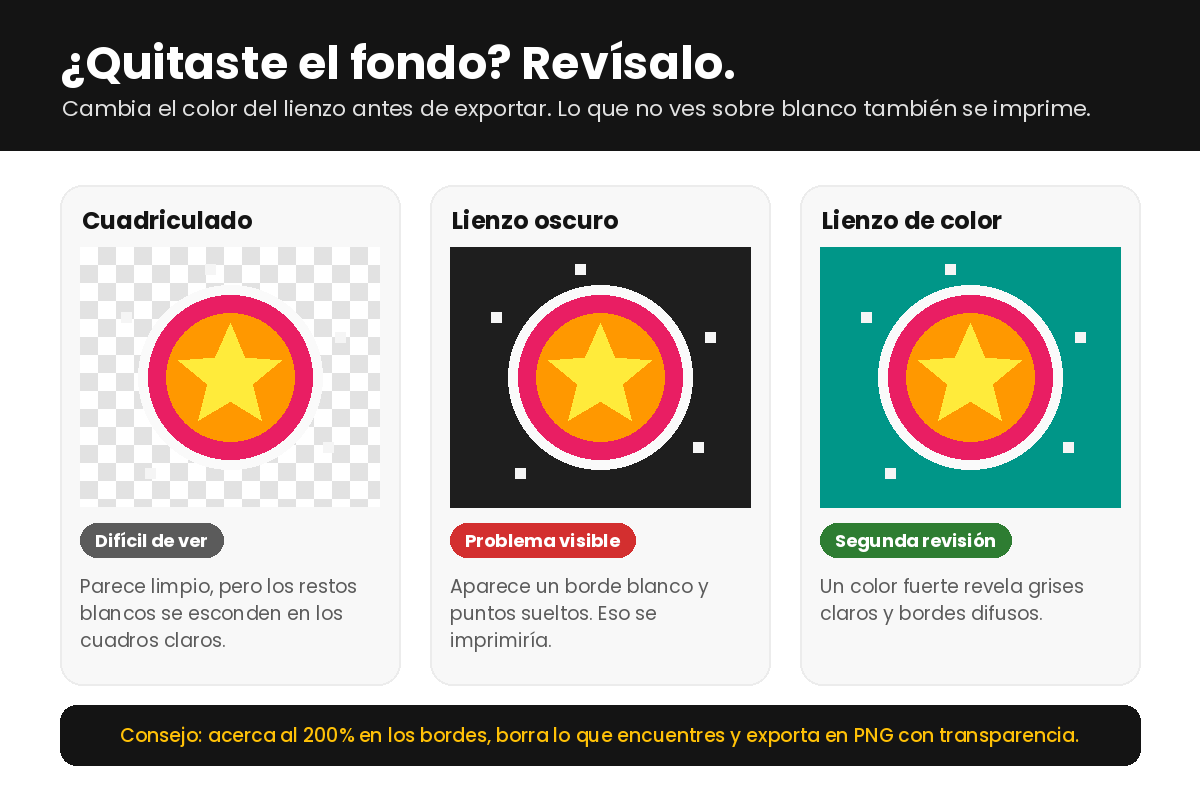
Revisa antes de exportar
- Cambia el color del lienzo o del fondo a negro y luego a un color fuerte, como verde azulado o rojo.
- Acerca al 200% y mira los bordes, el interior de las letras y el espacio entre figuras.
- Borra bordes blancos, sombras grises y puntos sueltos. Todo lo que veas se imprime.
- Exporta en PNG con transparencia. JPG no guarda el fondo transparente.
Antes de ordenar
- Fondo transparente, o pediste que te lo quitemos
- 300 DPI en el tamaño de impresión
- Tamaño real puesto y diseños separados en la hoja
- El diseño es tuyo o tienes permiso para imprimirlo
Después de imprimir
Plancha tus transfers con la temperatura, el tiempo y la presión de tu material.
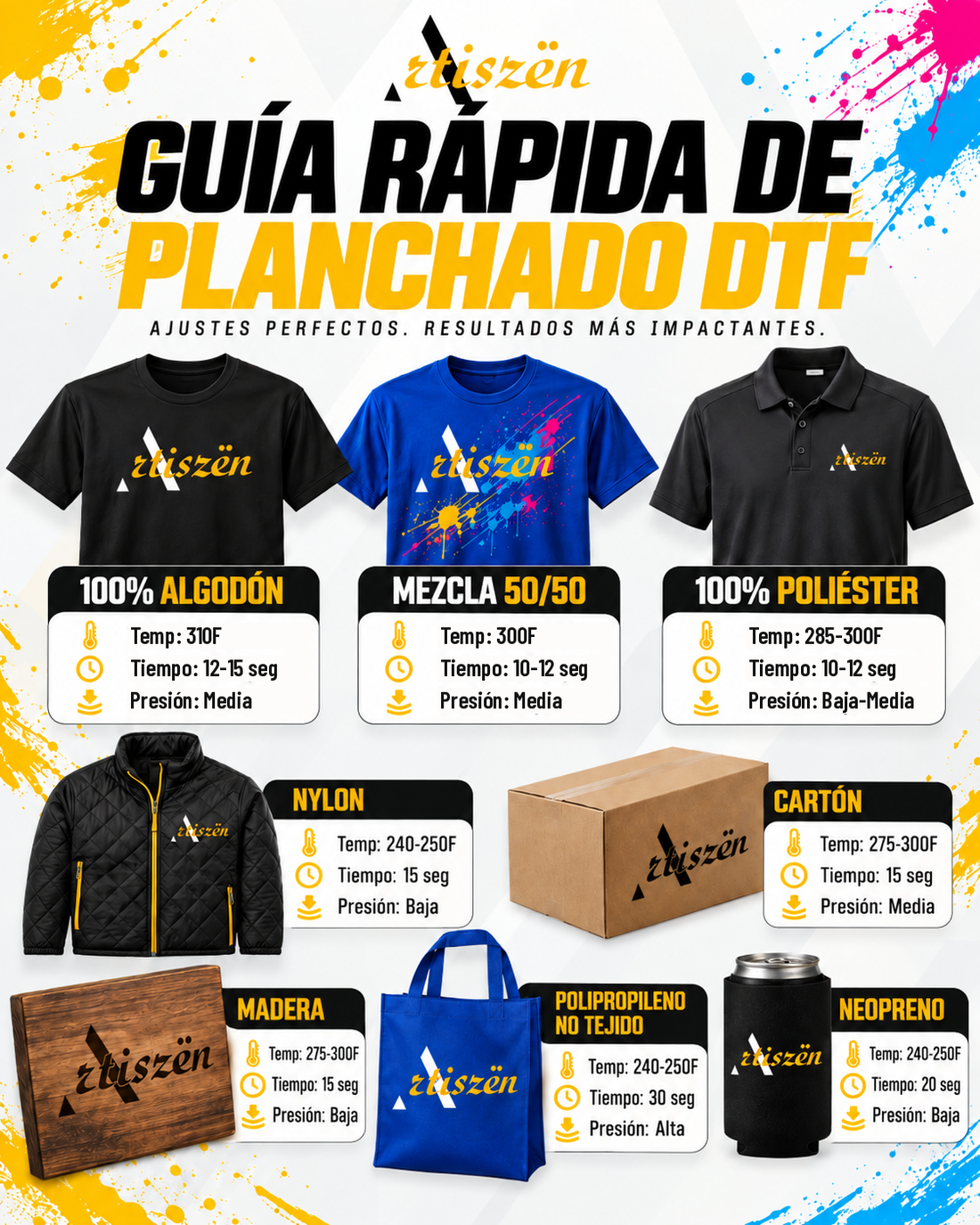
Todos los pasos en Cómo planchar transfers DTF. ¿Primera vez con nuestro editor? Mira Cómo armar tu Gang Sheet.
¿Preguntas?
Usa nuestro formulario de contacto o escríbenos por WhatsApp al (656) 227-2001.